LedgerPro guide · Prairie Peak example
How to set up a company and chart of accounts
Follow Prairie Peak Renovations through the setup decisions every LedgerPro company makes: profile, tax registration, accounts, and a second related company.
The company profile
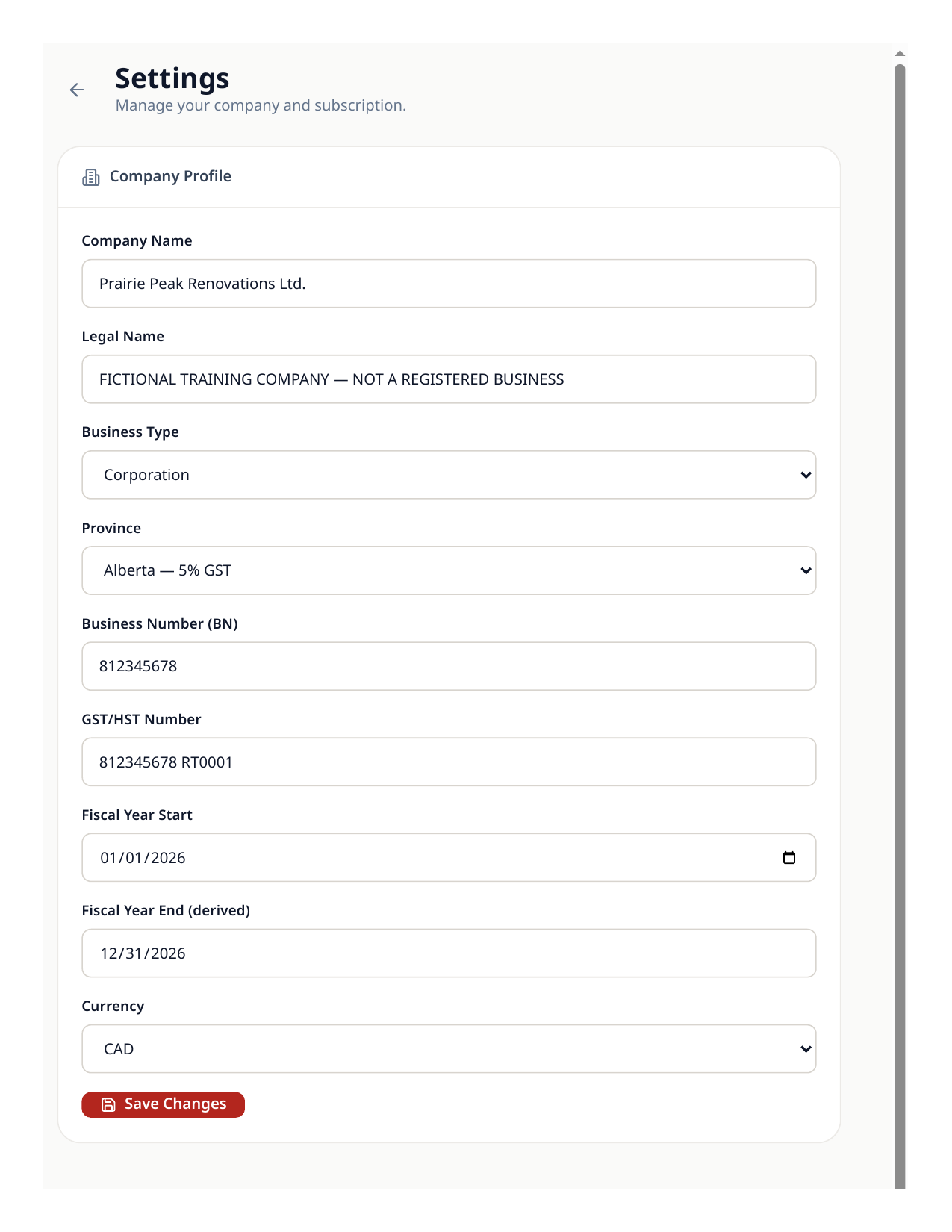
Everything starts in Settings. The example company in these walkthroughs is Prairie Peak Renovations Ltd., an Alberta renovation contractor. Its profile carries the legal name, business number, GST/HST number, province, and fiscal year — the same fields LedgerPro uses on invoices and in the GST/HST return.
- 1Open Settings and complete the company profile: legal name, business type, business number, and province.
- 2Enter the GST/HST registration number exactly as CRA has it (for example, 812345678 RT0001).
- 3Set the fiscal year. Prairie Peak uses a calendar year, January 1 to December 31.
- 4Save, then confirm the company name in the company switcher at the top of the screen.
Add the tax registration
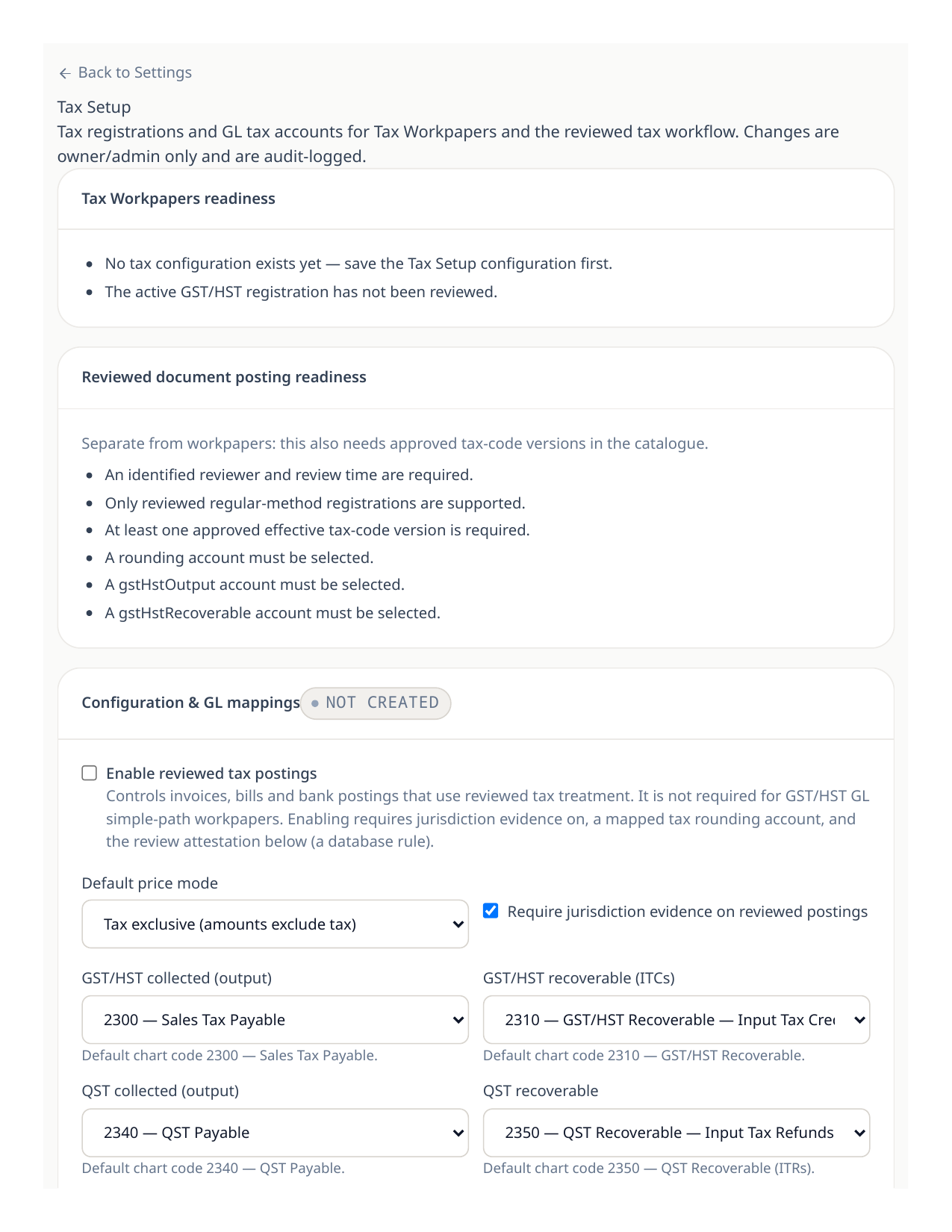
The GST/HST return only computes for a company with a tax registration on file. Prairie Peak is a quarterly filer, so its registration is set to the GST/HST regime with quarterly filing.
- 1In Settings, open the tax registrations section and add a registration.
- 2Choose the GST/HST regime, enter the registration number, and pick the filing frequency that matches your CRA account (monthly, quarterly, or annual).
- 3Set the date the registration became valid. Returns for periods before that date will not compute.
Review the chart of accounts
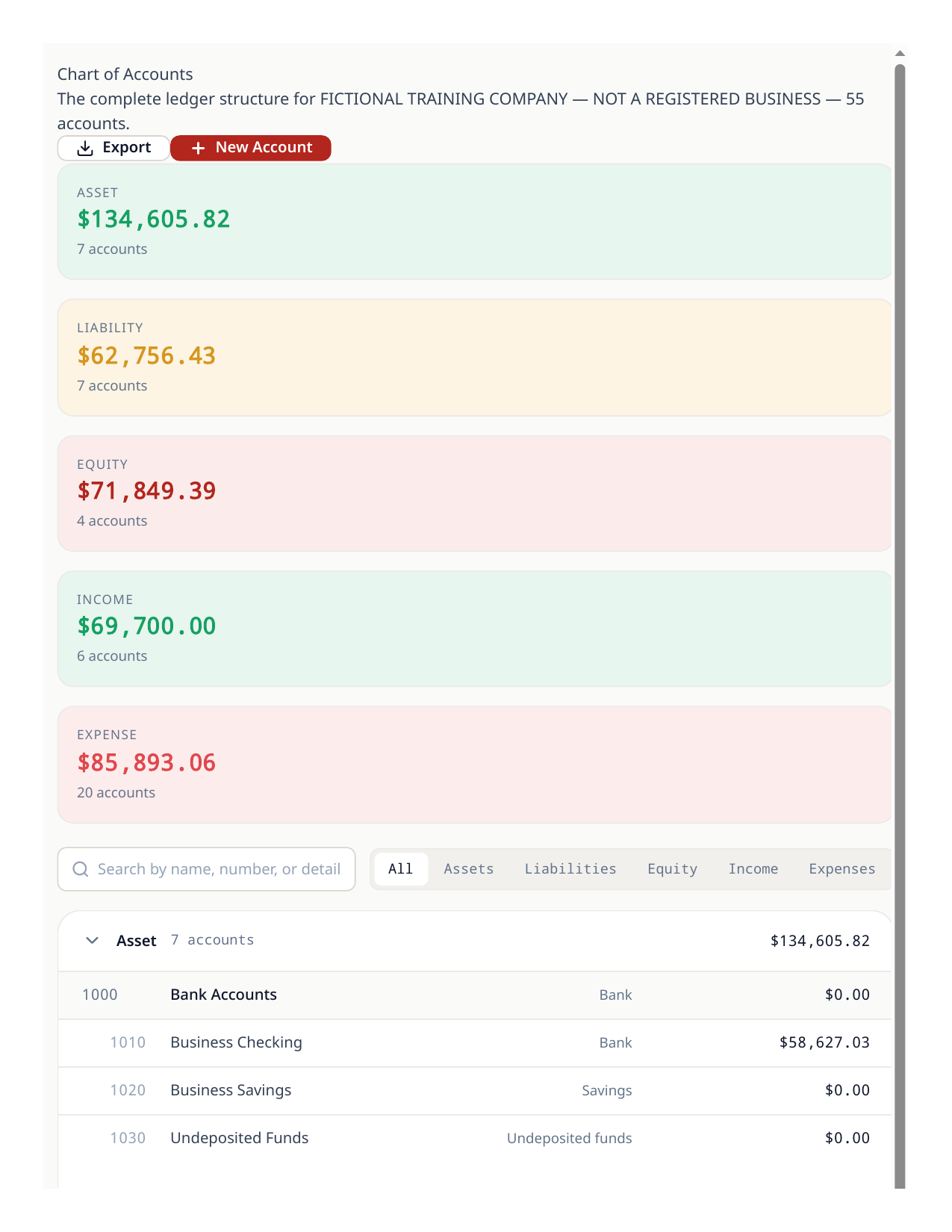
A new company starts with the Canadian default chart. Prairie Peak added the accounts its business actually needs: Petty Cash (1040) for cash spending, payroll accounts (6920 wages, 6940 employer payroll taxes, 2410–2440 payroll liabilities), job-cost accounts (5010 materials, 5020 subcontractors), and the intercompany control accounts (1160 Due from Holdings, 2260 Due to Holdings).
- 1Open the chart of accounts and scan the defaults before adding anything — most of what you need already exists.
- 2Add an account only when a default does not fit; choose the kind carefully, because the kind decides where the account appears in reports.
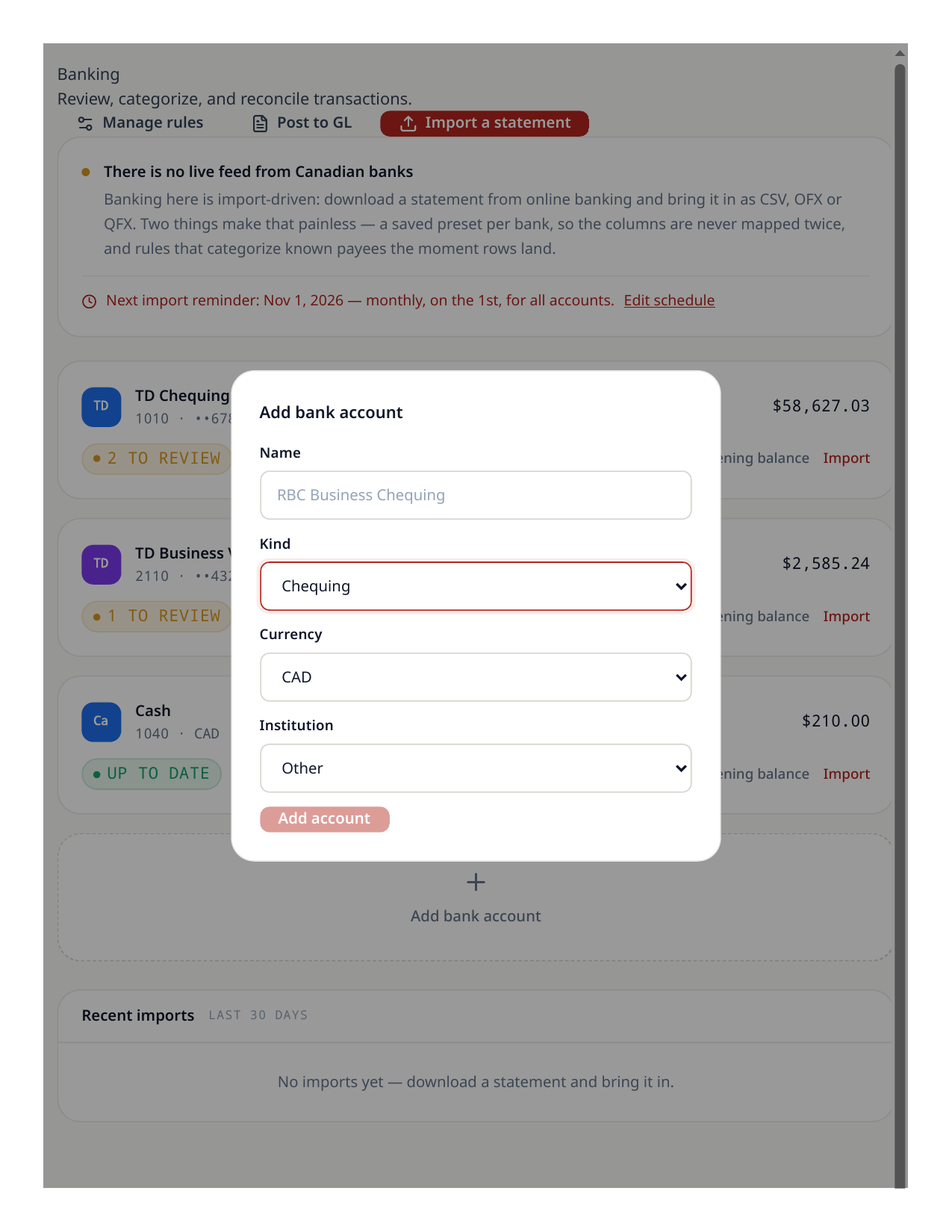
- 3For money you hold physically, add a cash account (kind: Cash). Cash expenses and the receipts walkthrough use it.
Working with more than one company
Prairie Peak Holdings Ltd. owns the building Prairie Peak Renovations works from. Both companies live under the same login, and the company switcher moves between them. Intercompany balances only stay mirrored if every entry is recorded in the right company, so confirm the switcher before you type.
Good to know
- Prairie Peak is a fictional training company created for these walkthroughs, with a full quarter of illustrative data.
Try the workflow
Put your own books through the same steps
Start a LedgerPro trial, or open this workflow in your existing company. The guide stays available as a public reference either way.