LedgerPro guide · Prairie Peak example
How to import a bank statement without importing it twice
A clean import is the start of clean books. This guide shows how statement rows enter one account at a time — and how LedgerPro recognises an overlapping import before it can double the ledger.
Start from the account
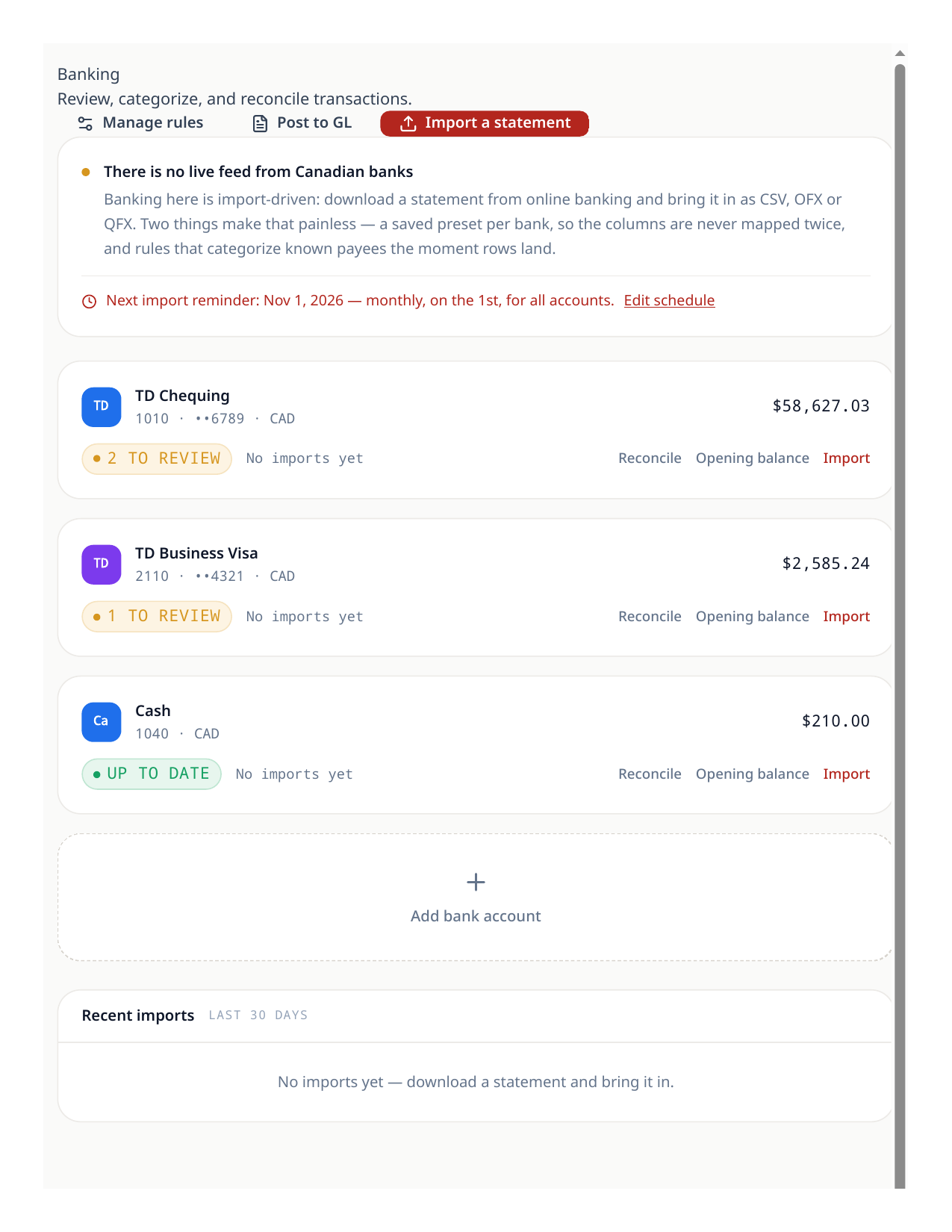
Imports belong to one financial account at a time. Prairie Peak runs three: TD Chequing for operations, a TD Business Visa for site purchases, and a small Cash account. Each maps to its own GL account, so importing into the wrong account posts to the wrong place.
- 1Open Banking and choose the account the statement belongs to.
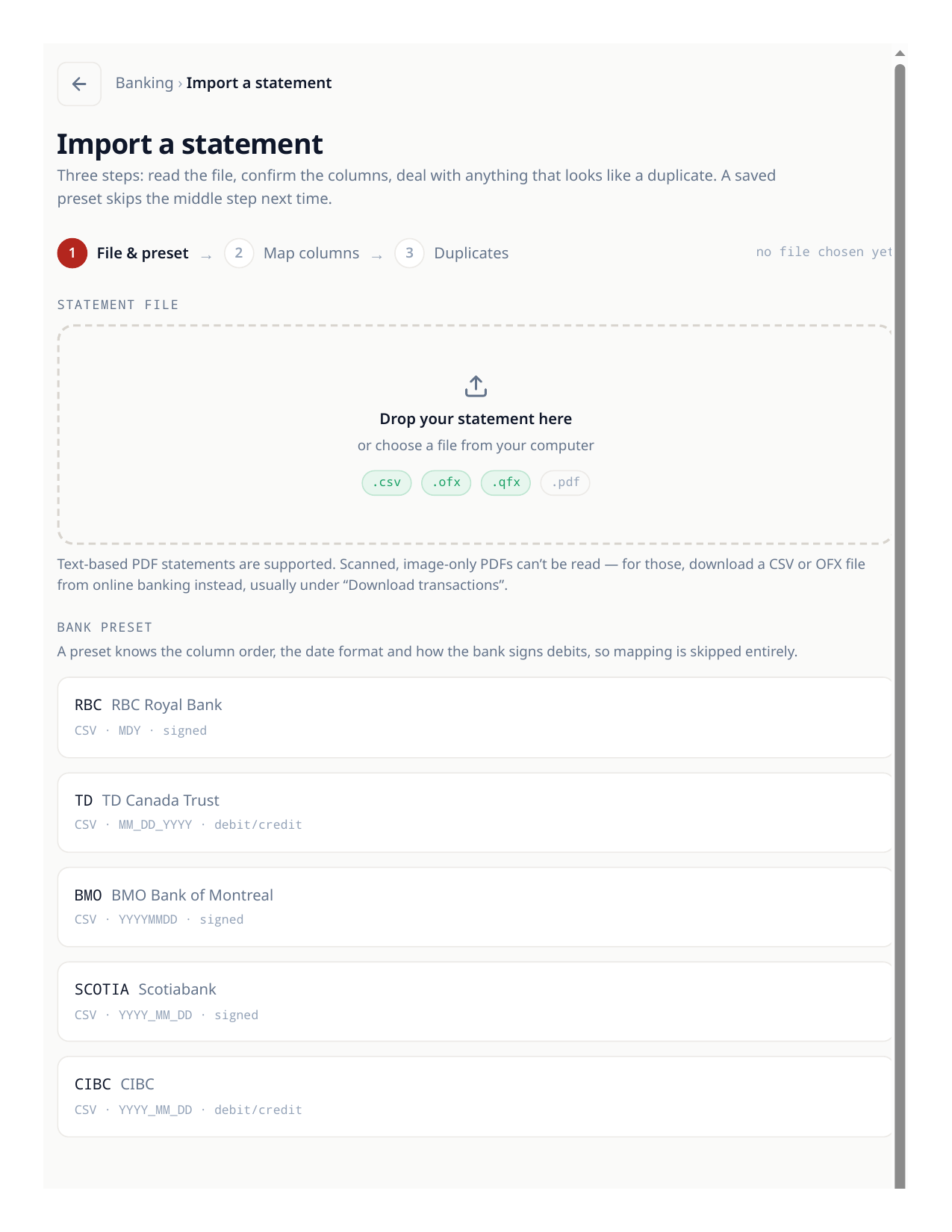
- 2Choose Import, then pick the statement file (CSV, OFX, or a text-based PDF statement).
- 3Map the columns once if LedgerPro asks — date, description, and amount are the essentials.
How duplicates are prevented
Re-importing a statement is safe. LedgerPro fingerprints every row — for OFX files it uses the bank’s own transaction ID; otherwise it combines the date, the amount, and the cleaned-up description. A row whose fingerprint already exists in that account is skipped automatically, so overlapping statement periods never double your books.
- 1On the review screen, check the counts: new rows versus duplicates skipped.
- 2If a row is flagged as a duplicate but is genuinely a second, identical purchase, you can force-keep it — the fingerprint is a safety net, not a lock.
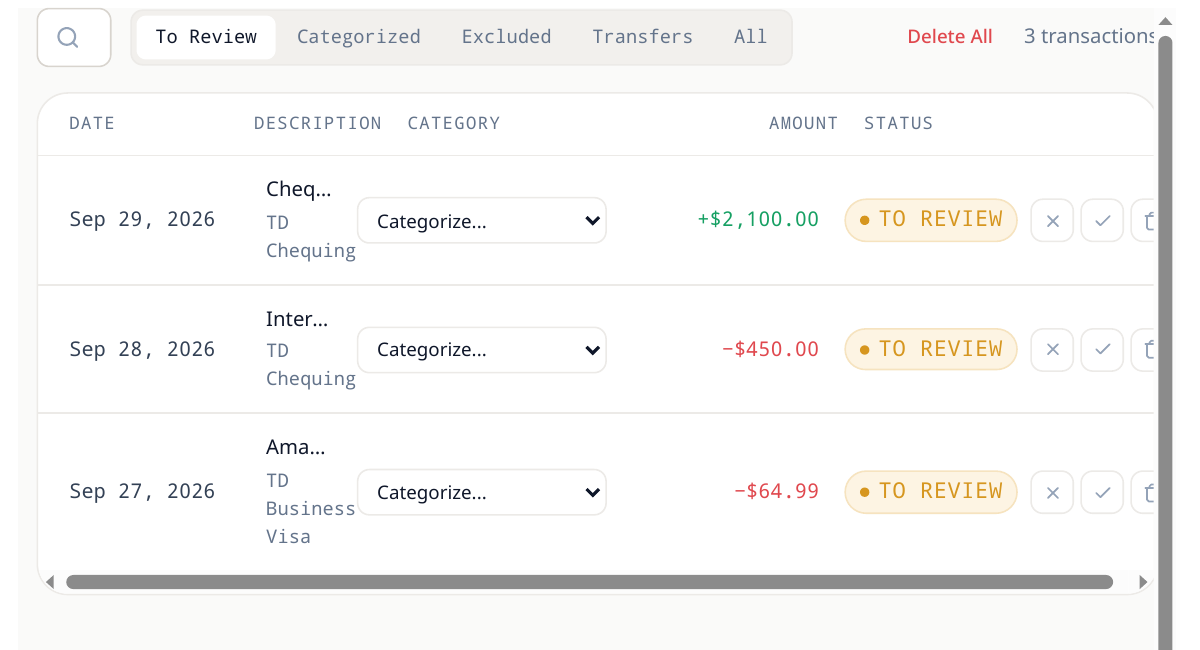
- 3Confirm the import. New rows land in the register as unposted, ready to categorize.
Good to know
- Categorization rules you have saved apply automatically to imported rows that match, so repeat purchases (fuel, phone, software) often arrive already categorized.
- Keep the original statement file with your records — the import is a copy, not the evidence.
Try the workflow
Put your own books through the same steps
Start a LedgerPro trial, or open this workflow in your existing company. The guide stays available as a public reference either way.