LedgerPro guide · Prairie Peak example
How to enter bills and track supplier payments
A bill records what the business owes before any money moves. Follow Prairie Peak’s supplier bills from entry to payment, and see how the remaining balances agree to accounts payable.
Bills are promises; payments are cash
A bill records what you owe and when — entering it does not move money. Prairie Peak entered eight bills in Q3: five paid, two still open at quarter-end, and one special case (the intercompany management fee, covered in the intercompany walkthrough). The open two — Foothills Lumber $3,123.75 and Volt Right Electrical $1,617.00 — are exactly the accounts payable on the balance sheet.
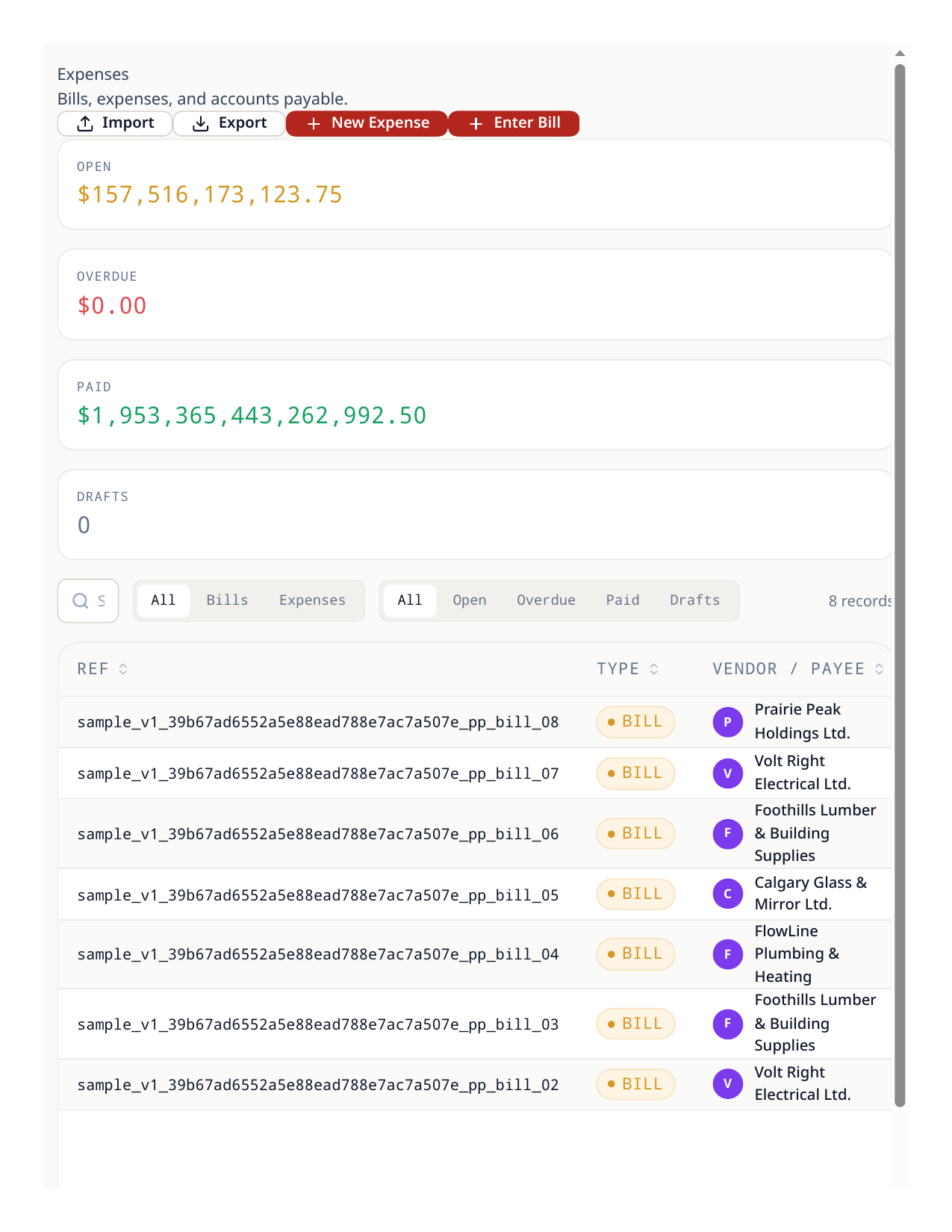
Enter a bill
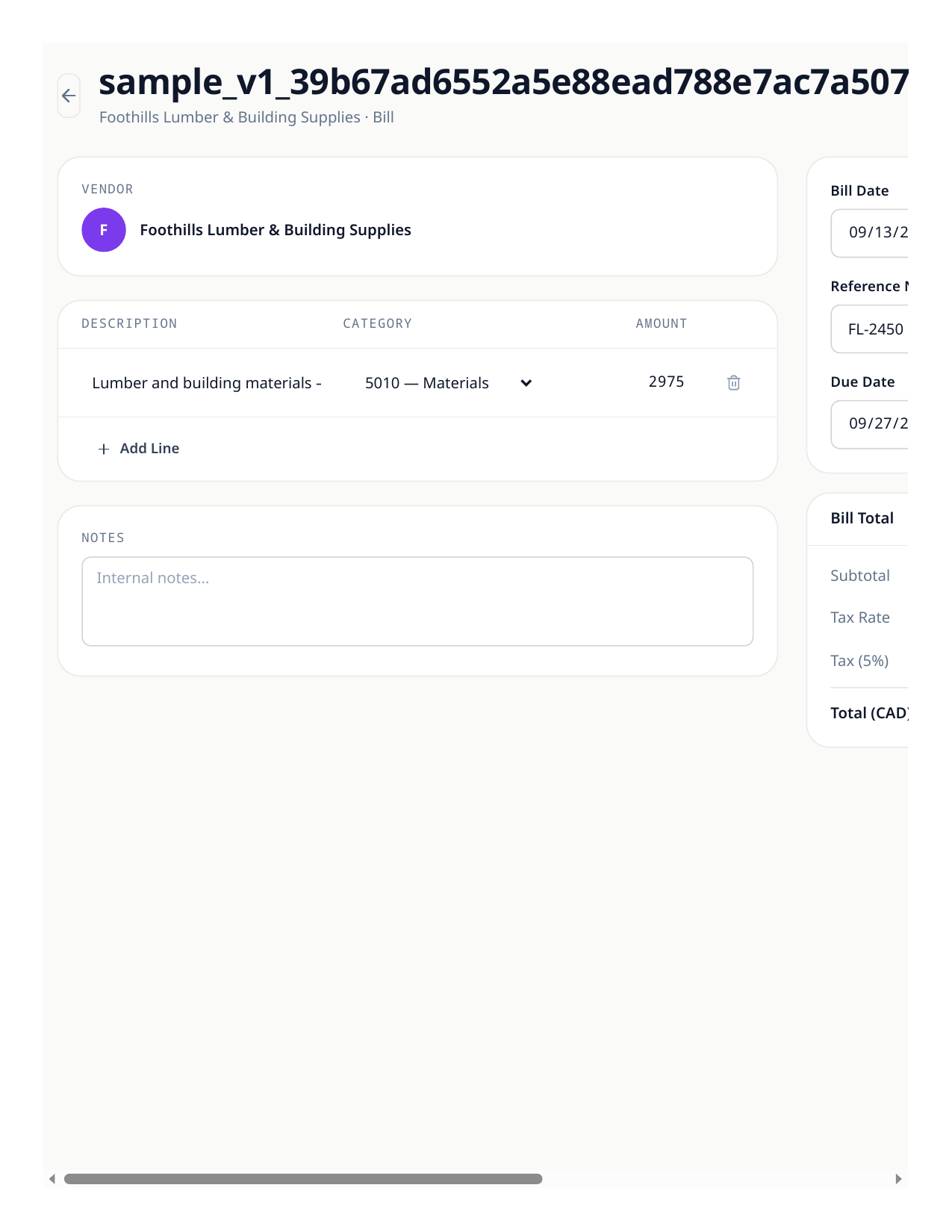
- 1Open Bills & Expenses and choose New bill. Pick the supplier and enter the bill date, due date, and their reference number.
- 2Add lines with categories — lumber to Materials (5010), electrical work to Subcontractor Costs (5020).
- 3Enter the GST as billed. The GST on a supplier bill is your input tax credit, claimed in the period of the bill, not the payment.
- 4Save. The expense and the payable are in the ledger; cash has not moved.
Pay a bill
- 1Open the bill and choose Pay. Choose the account paying it — chequing for Prairie Peak’s supplier runs.
- 2Pay in full or in part; a part payment leaves the balance open with the amount still owing.
- 3The payment creates the matching bank transaction, so the register, the bill, and the payable all agree.
Try the workflow
Put your own books through the same steps
Start a LedgerPro trial, or open this workflow in your existing company. The guide stays available as a public reference either way.